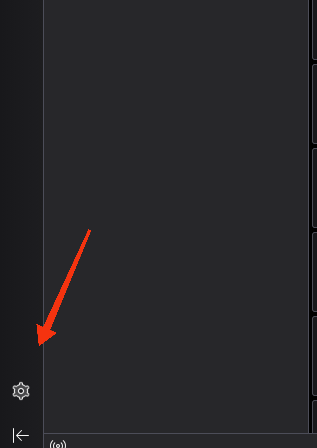
- Comece por aceder às definições do Thunderbird.
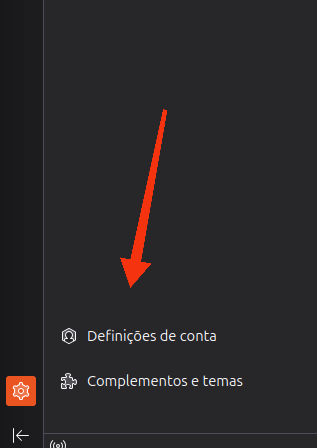
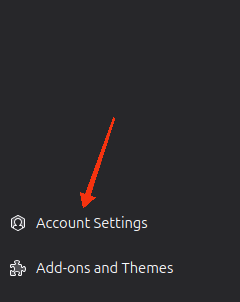
- Selecione "Definições de conta".
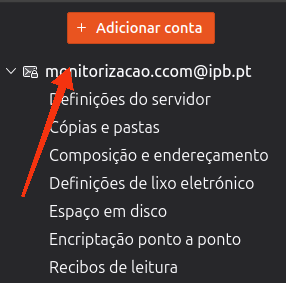
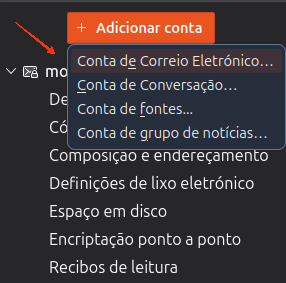
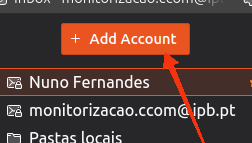
- Selecione "Adicionar conta".
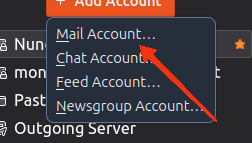
- Selecione "Conta de Correio Eletrónico".
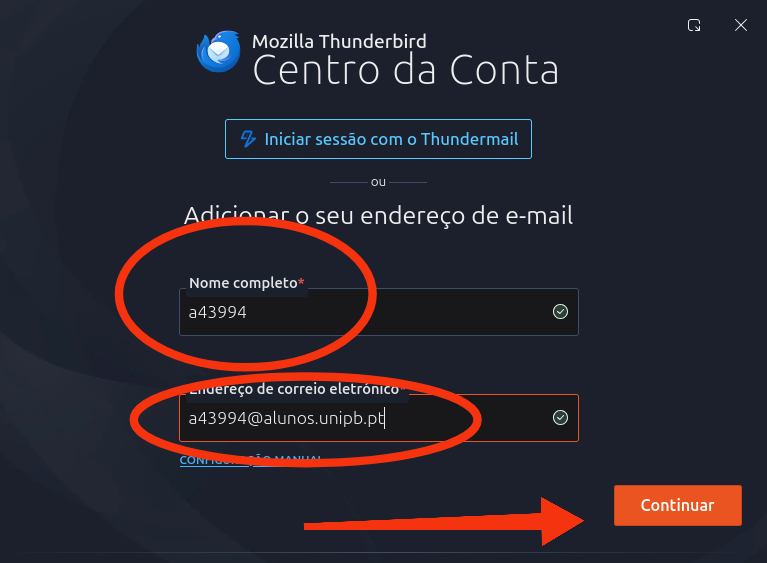
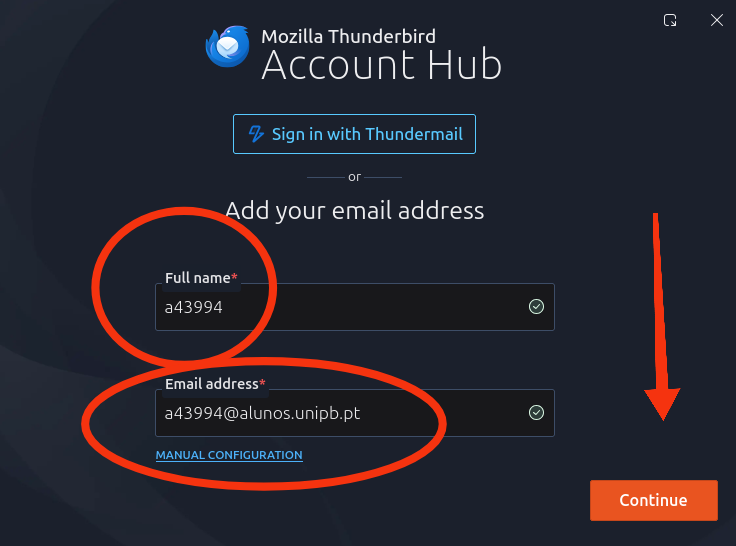
- Coloque no campo "Nome completo" o nome da sua conta, e no campo "Endereço de correio eletrónico" coloque o endereço do tipo @unipb.pt.
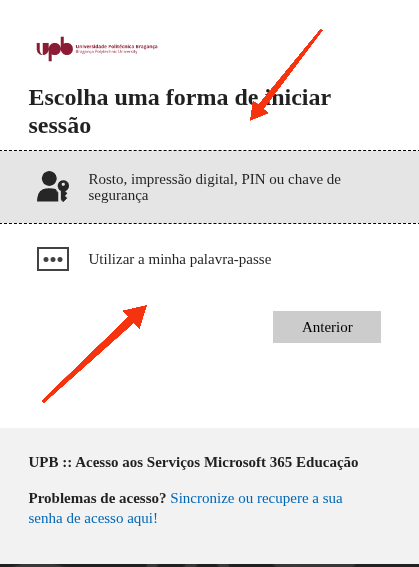
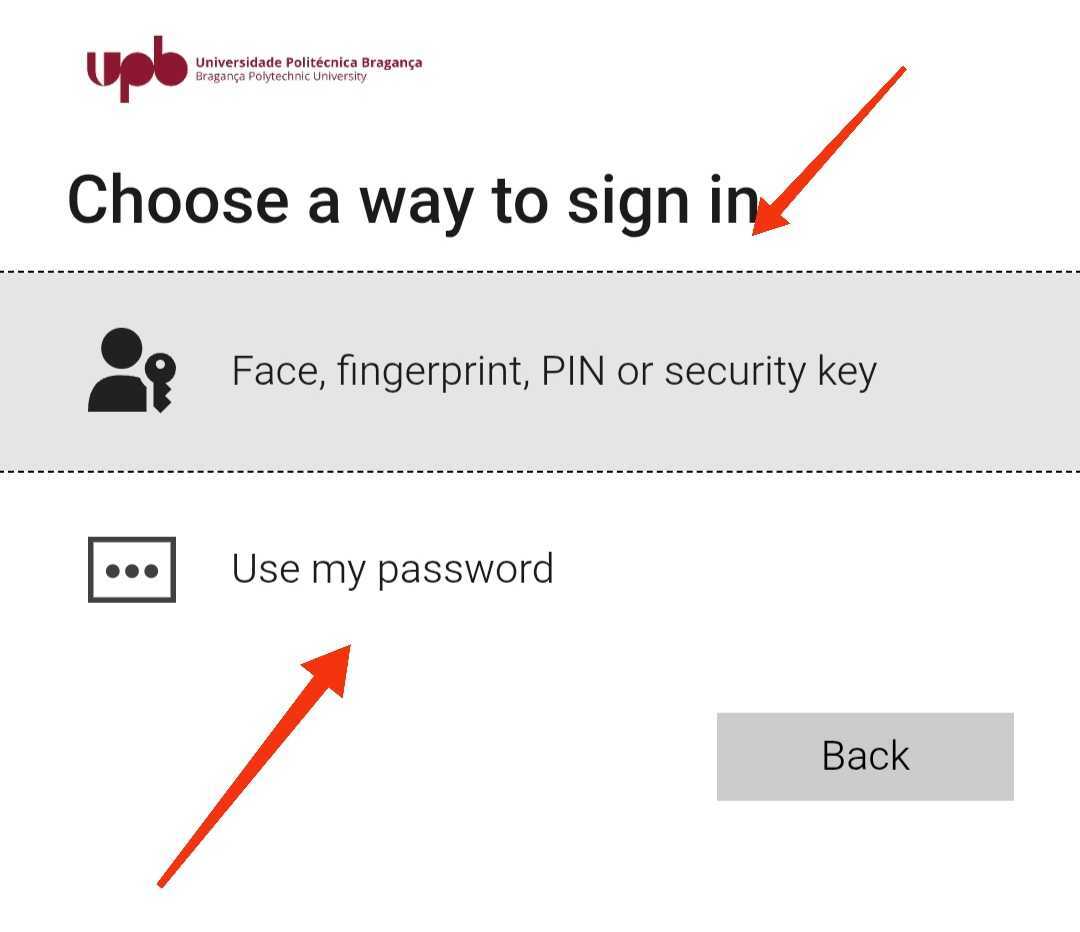
- Será redirecionado para a página da Microsoft para fazer autenticação onde deverá escolher um dos método de autenticação disponíveis (neste exemplo foi usado o método de autenticação por palavra-passe).
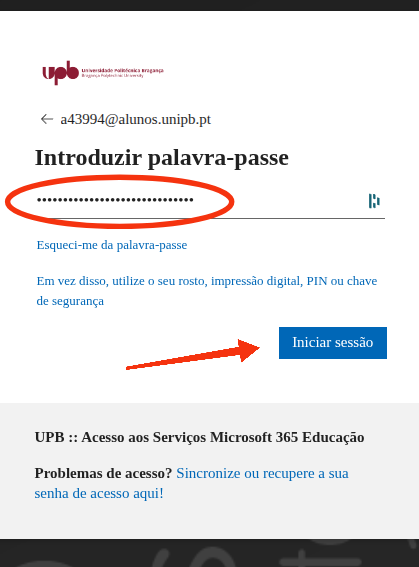
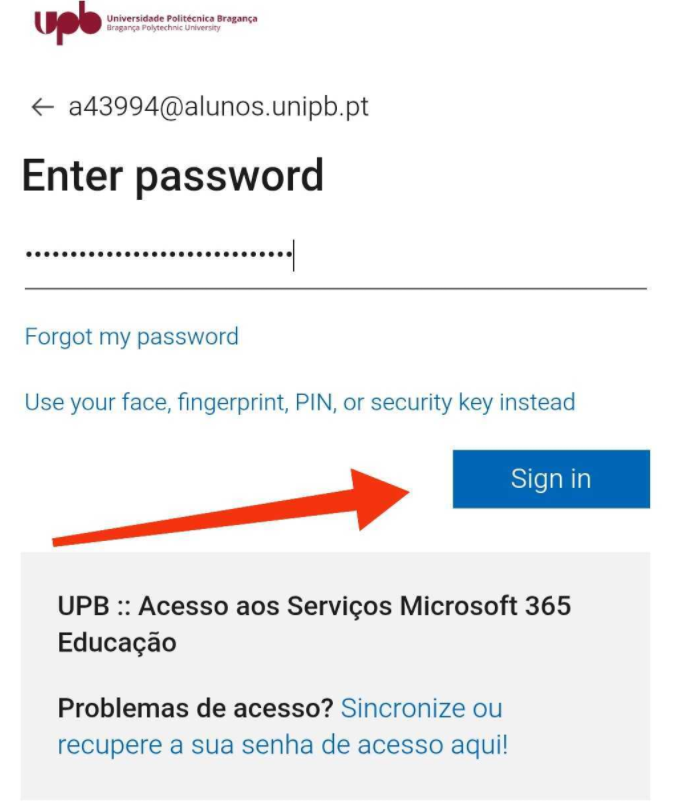
- Coloque a sua palavra-passe e selecione "Iniciar sessão". Após essa autenticação, pode proceder com a configuração do Thunderbird.
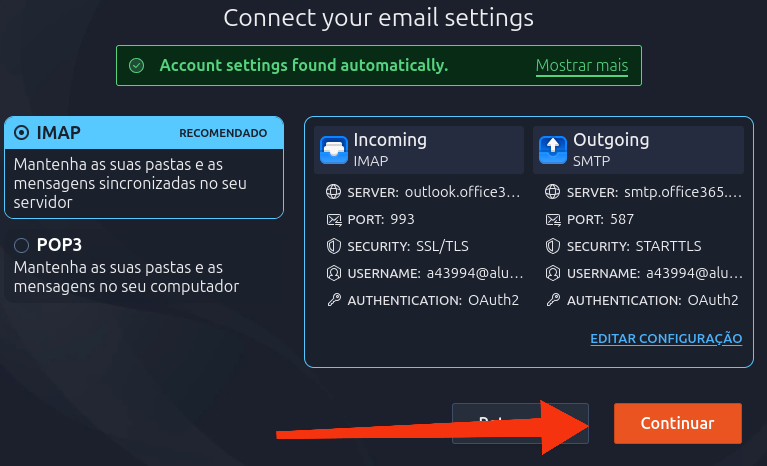
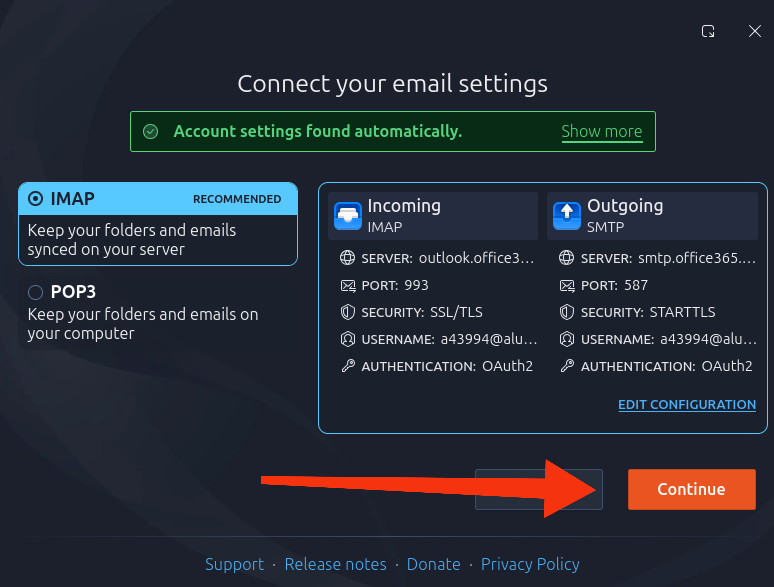
- Selecione "Continuar".
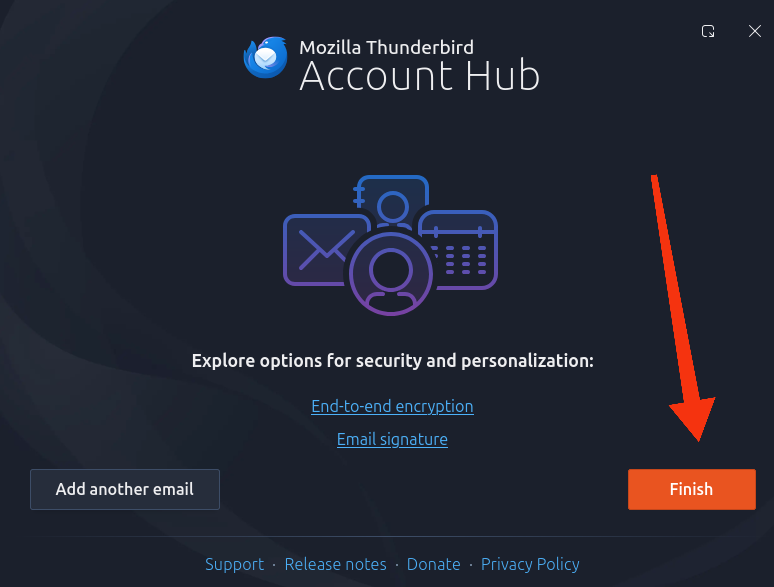
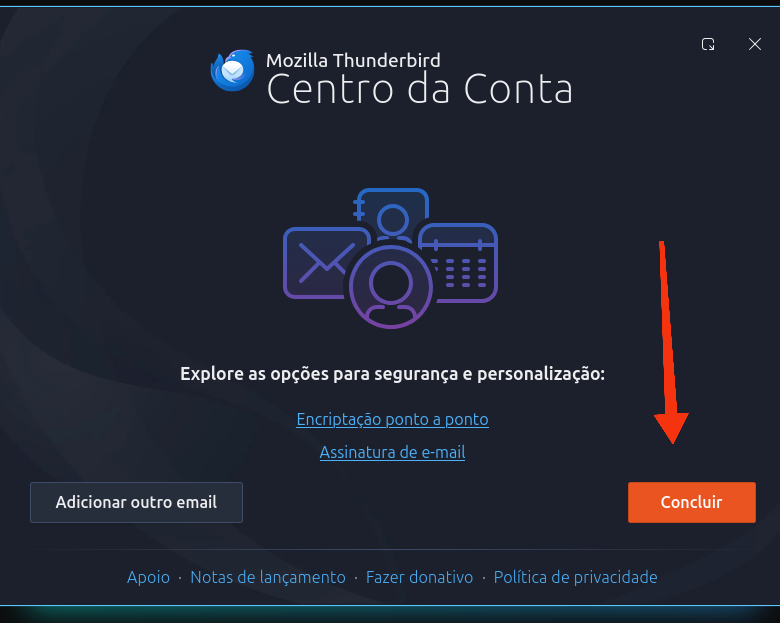
- Selecione "Concluir" e está terminado o processo de "Configuração do acesso por IMAPS no Thunderbird".
- Start by accessing the Thunderbird settings.
- Select "Account Settings".
- Select "Add Account".
- Select "Mail Account".
- In the "Full Name" field, enter your account name, and in the "Email Address" field, enter an address in the format @unipb.pt.
- You will be redirected to the Microsoft page to authenticate, where you must choose one of the available authentication methods (in this example, the password authentication method was used).
- Enter your password and select "Log In". After this authentication, you can proceed with the Thunderbird configuration.
- Select "Continue".
- Select "Finish" and the "Configuring IMAPS access in Thunderbird" process is complete.